Start with one page that tells people what you do, where you work and how to get in touch. ChatGPT or Claude can help write it. An AI website builder can also put a first layout together for you.
Start here. Open ChatGPT or Claude and draft the page before you choose where to build it. Already have a WordPress site? Use AI to update a WordPress page.
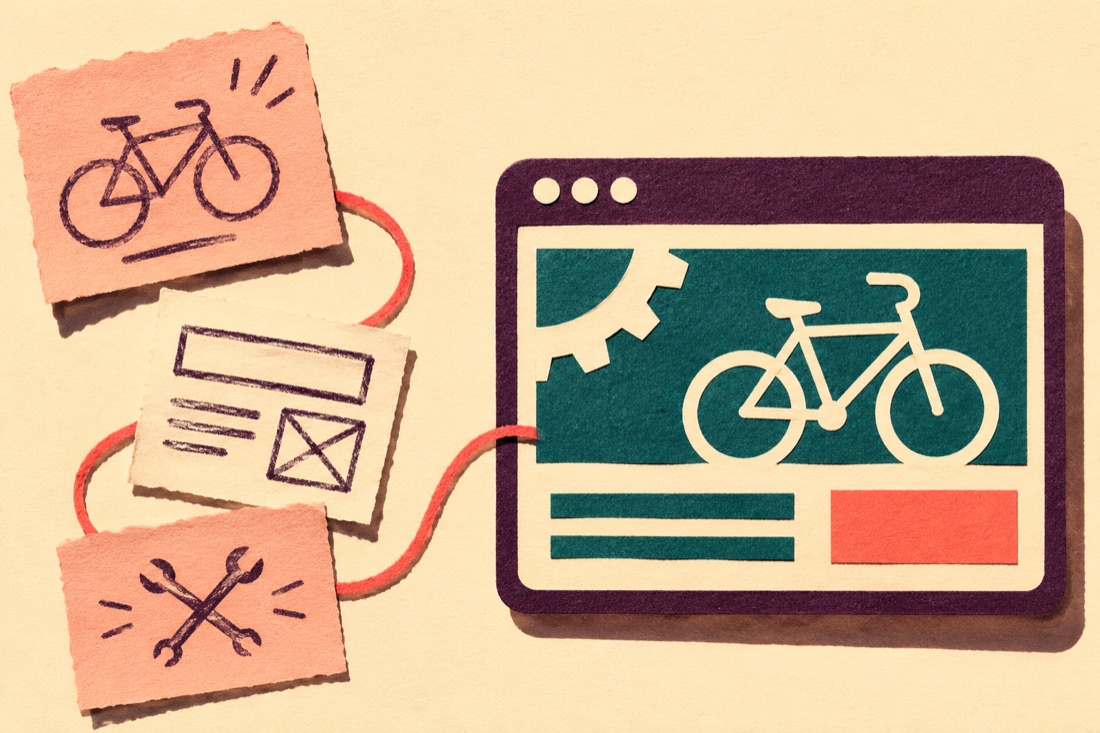
Write a short plan for your first page
Write down what you do, where you work and what you want customers to do next. Use public business details and keep customer names, messages and addresses out. A brief is a short plan that puts those facts in order.
Commuter bike repairs. Redland and Bishopston. Customers ask for a quote through a form.
Commuter bike repairs in Redland and Bishopston
Tell me what needs fixing and I’ll let you know if I can help.
Button text Ask for a quote
Open the prompt below and tap Copy prompt. Paste it into your chat, then replace the parts in square brackets with your own notes. On a phone, keep this tab open so you can switch back. Answer anything the chat asks before using the brief.
Turn rough notes into a one-page website briefClaude or ChatGPT
I run [type of business] in [service area]. My notes are below. Turn them into a brief for one first website page. Name the main customer, the question they need answered and one action they should take. Then give me a short list of page sections in the order a customer needs them. Use my wording if it sounds natural. Leave out unconfirmed prices, qualifications and promises. Finish with up to three questions that could change the brief. My notes: [paste your notes]Browse all prompts
Turn the plan into a page
- Once you’re happy with the brief, ask the chat to draft a heading, a short description and one contact button from the facts it contains. Try a complete example of this step.
- Check every service, area and promise. In your website editor, the screen where you add text and images, create a draft page. Add the heading and description, then link the button to the contact option you can actually use.
- Open the preview on your phone and tap the button. If you’re still choosing a platform, try changing a paragraph in its editor before paying for a plan.
Choose where to build and publish it
- Start with an editor if you want to make your own changes. WordPress.com is one option. Its page editor lets you add a draft page and check how it looks. You can write the draft in chat first.
- Try a hosted AI builder if you want a first layout. WordPress.com’s WordPress Agent, for example, asks you to review a brief before it creates a site. Check the plan and renewal price on its own site before paying. WordPress.com’s builder instructions
- Try Codex or Claude Code if you already work with website files. Ask for a preview that runs on your computer. Before publishing, work out which service will host the site and how you’ll make changes later. A computer is easier for this route.
Can I try it for free?
Use a free chat plan to try the brief and draft the words. Check your platform’s plan page and checkout for what it costs to publish on your own address, use a form or sell online. Add domain renewals and email to your budget.
Check the page before sharing it
- See if someone can find your service area and contact option on a phone without asking you.
- If you’ve added a form, send yourself an enquiry with “TEST” in the message. Check it arrives and reply to the test address. If you use a call button, check it opens the right number.
- Connect your web address when the site is ready. If it already has a site or email attached, check what might be affected before changing the settings. Open the public address and repeat the phone check.