Use ChatGPT or Claude to draft one change, then make it in WordPress. Start with a service description or an opening-hours notice you can check against your own records.
Practise on a draft first. Save or Update on an already published page can put your change live straight away. This guide uses the WordPress editor in a browser. If you’re unsure which editor your site uses, check with your host or the person who set it up.
Give chat the text you want to change
- Copy one public paragraph into a note or document you can keep.
- Open ChatGPT or Claude. Copy the prompt below into the chat and replace the two sets of brackets. Keep customer enquiries, logins and private records out.
- Read the new wording against your own notes. Check the area, times, price and contact link. Keep the checklist separate when you copy the replacement paragraph.
For a fictional bike repairer, “We fix bikes across Bristol” could become “I adjust gears and brakes in Redland and Bishopston.” The narrower wording answers the customer’s question and matches the areas the owner confirmed.
Rewrite one paragraph on your websiteClaude or ChatGPT
Rewrite just the paragraph below in plain British English. Keep the facts that still apply and use only the confirmed changes I give you. Leave any price, promise or contact detail I haven’t confirmed out of the new wording. Give me the replacement paragraph first, then a separate list of anything I should check. Work from my text only and make no changes to the website. Current public paragraph: [paste the paragraph] Confirmed change: [what is different now]Browse all prompts
Preview it in a separate draft
- In the browser editor, open Pages and add a new page for practice. Paste in the paragraph and choose Save draft. Leave the existing page published.
- On WordPress.com’s block editor, open View and choose Preview in new tab. Read the new paragraph on your phone. If you’re editing on a phone and can’t find the controls, use a computer for the edit. WordPress.com preview instructions
- When you’re ready, open the original page and replace just that paragraph. Leave the page title and address as they are. Save or update to put the change live.
- Open the public page in a private browser tab, where you can view it without your usual sign-in. Read the paragraph and tap the nearby contact link.
If you see the wrong wording live, put the saved text back and check the public page again. If older text is still showing, check the page address and whether the wording is in a shared header or footer.
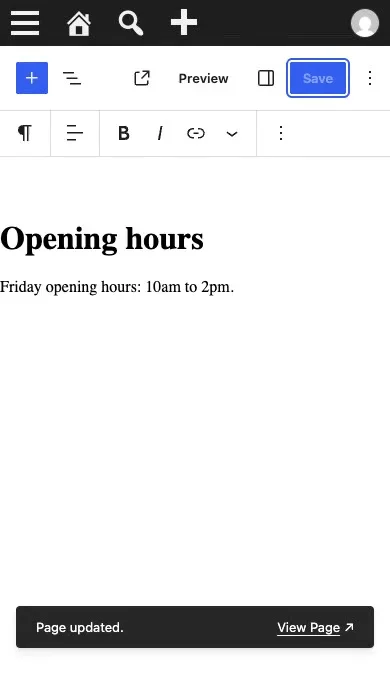
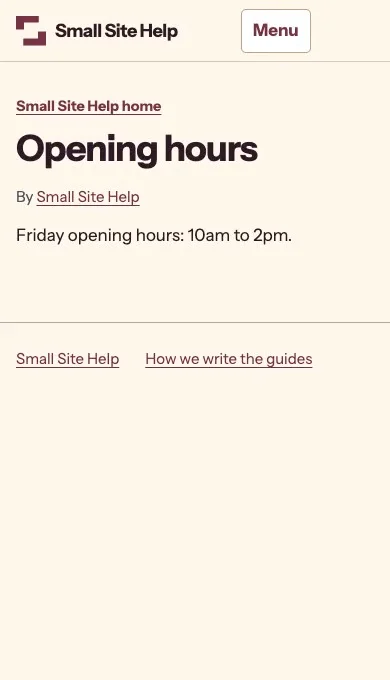
Watch the 14-second WordPress edit
See the text change, the save confirmation and the signed-out page in our test.